How to Test If Your VPN Is Actually Working (IP, DNS, WebRTC & Kill Switch)
By BetterVPN Team · September 16, 2026
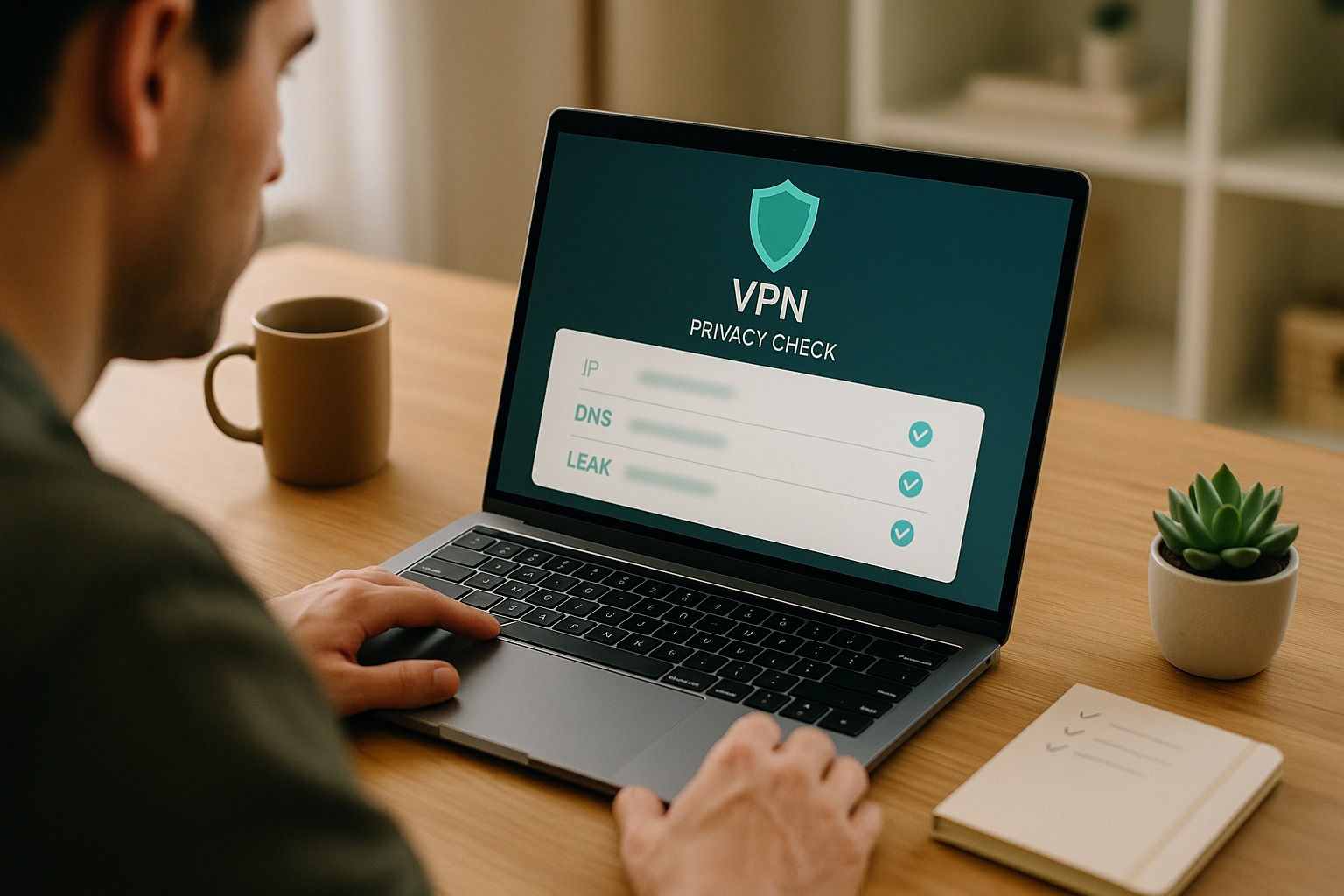
A VPN app that says "Connected" is not proof that your traffic is protected. In a few minutes you can verify four things that matter to every buyer: your public IP, your DNS lookups, browser WebRTC behavior, and what happens when the tunnel drops.
Why "Connected" is not enough
A modern VPN encrypts traffic between your device and a remote server, and it should change the public IP that websites see. That is the baseline. Real-world networks are messier: Wi-Fi flaps, cellular handoffs, OS DNS shortcuts, and browsers that talk to the network on their own can all leave gaps.
Those gaps usually fall into two buckets:
- While the tunnel is up: some traffic still goes around it (classic DNS or WebRTC leaks).
- When the tunnel drops: your device briefly falls back to the ISP path and exposes your real IP (what a kill switch is meant to prevent).
You do not need lab gear to check either case. Free, public test pages plus one deliberate disconnect are enough.
1. Confirm your public IP changed
What it checks: Whether websites see a VPN exit IP instead of your ISP address.
How to do it:
- Disconnect the VPN. Open a simple IP lookup page (for example your ISP's status page, or any reputable "what is my IP" site) and note the IPv4 address, and IPv6 if shown.
- Connect the VPN to a server you plan to use day to day.
- Refresh the same page (or open it in a private window).
Pass: The public IP is different from your ISP IP, and it matches the region you expect for that server (roughly, not down to the city).
Fail / investigate: The IP is unchanged, or you still see your home IPv6 address while IPv4 changed. Many leaks are IPv6-only: the VPN tunnels IPv4 but leaves IPv6 on the open path. Prefer a client that tunnels or blocks IPv6 for the session; as a temporary OS-level workaround some people disable IPv6, but that is a blunt tool and can break networks that need it.
Repeat this on each device you care about (phone, laptop, tablet). One subscription often covers multiple devices (BetterVPN's Standard plan includes up to 10 devices, and Dedicated Server includes up to 30), so spot-check the platforms you actually use.
2. Run a DNS leak test
What it checks: Whether domain lookups (the "what IP is example.com?" queries) leave through the VPN or still go to your ISP's resolvers.
This is the trap that creates false confidence. Your IP test can pass while your provider still sees a list of every hostname you resolve.
How to do it:
- Stay connected to the VPN.
- Open a DNS leak test page and run the extended / multi-server test if offered.
- Compare the resolver addresses and organizations shown with your ISP's usual DNS.
Pass: Resolvers belong to the VPN (or a resolver the VPN deliberately routes through the tunnel). None should clearly belong to your home ISP.
Fail / investigate:
- Turn on any "use VPN DNS," "force VPN DNS," or "block DNS outside tunnel" option in the client.
- On Windows, Smart Multi-Homed Name Resolution can send parallel DNS queries outside the tunnel. VPN-side DNS locking is the cleaner fix than hunting registry flags.
- Check whether your browser has DNS over HTTPS (DoH) pointed at a public resolver that bypasses the VPN's DNS path. If the VPN cannot bind DoH into the tunnel, disable browser DoH while testing, then re-test.
A kill switch does not fix a DNS leak while the VPN is still connected. DNS protection and kill switch solve different failure modes; you want both.
3. Check for WebRTC leaks in the browser
What it checks: Whether the browser's WebRTC stack can reveal a local or public IP even when the system VPN looks fine.
WebRTC is useful for video calls; it is also chatty. Some sites can ask the browser for candidate addresses that include your real public IP.
How to do it:
- Connect the VPN.
- Open a WebRTC leak test page in the browser you use most.
- Compare any public IPs listed with the VPN exit IP from step 1.
Pass: No public IP matches your ISP address. Local/LAN addresses alone are usually less critical for "who am I on the internet?" but still worth noting.
Fail / investigate: Update the VPN client, try another browser, or tighten WebRTC/privacy settings in the browser. Re-test after each change. Do not assume a desktop fix applies to mobile browsers.
4. Stress-test the kill switch
What it checks: Fail-closed behavior when the encrypted tunnel dies.
Without a kill switch, a dropped VPN often means your apps immediately continue on the clear ISP path. Even a second or two can expose your real IP, DNS queries, and session cookies on open Wi-Fi.
How to do it (safe, deliberate test):
- Connect the VPN with the kill switch (sometimes labeled network lock / always-on / block non-VPN traffic) enabled.
- Open a page that shows your IP and leave it ready to refresh.
- Force the VPN down in a controlled way: use the client's disconnect only if that bypasses the kill switch on purpose; better, simulate a drop by killing the VPN process, toggling the VPN interface, or briefly disabling the network adapter while kill switch remains on. Follow your client's documented test method.
- Immediately try to load a new site or refresh the IP page.
Pass: Outbound internet stops (pages fail to load / timeouts). Your real ISP IP does not reappear until you intentionally turn the kill switch off or reconnect the VPN.
Fail: Traffic resumes on your ISP IP while the VPN claims it should be blocked. Treat that as a serious gap for privacy-sensitive work.
System-level kill switches (OS firewall / routing rules) are generally stronger than "block only these apps" modes, because an app-level switch can fail if the VPN process crashes. Prefer the stricter mode when you care more about privacy than uninterrupted browsing.
What a kill switch does not do
- It does not encrypt traffic by itself.
- It does not replace DNS or IPv6 leak protection while connected.
- It will interrupt downloads and calls when the tunnel flaps. That inconvenience is the point.
A practical 10-minute checklist
Use this whenever you install a client, change devices, or after a major OS update:
| Step | Action | Good result |
|---|---|---|
| A | IP before vs after connect | Exit IP is not your ISP IP; IPv6 not exposing home |
| B | DNS leak test | No ISP resolvers listed |
| C | WebRTC test | No ISP public IP in candidates |
| D | Kill switch drop test | Internet stops; ISP IP stays hidden |
| E | Repeat on phone + PC | Same pass criteria on each |
Save screenshots of pass results with the date. If support ever asks for diagnostics, those help more than "it felt slow."
Buying with clearer eyes
Marketing pages love feature checklists. Your tests turn those claims into evidence. When you compare providers, ask:
- Is there a kill switch that actually fail-closes on my OS?
- Does the client force DNS through the tunnel?
- Are native apps available for the devices I use (phone, desktop, TV)?
- Are device limits honest and enough for the household?
BetterVPN is built around those everyday protections (including a kill switch and flexible split tunneling) on native apps across iPhone, Android, Windows, macOS, and TV platforms. If you want to see plan limits and billing options in plain language, start at bettervpn.com/pricing. To install and run the same four tests yourself, grab the client from bettervpn.com/download.
No VPN can promise perfect anonymity on every network, but you can check that yours changes your public IP, keeps DNS inside the tunnel, doesn't leak through WebRTC, and blocks traffic when the tunnel drops. Run the checklist once, and you'll know your VPN is really protecting you.