When to use VPN split tunneling (and when to keep everything on the VPN)
By BetterVPN Team · September 22, 2026
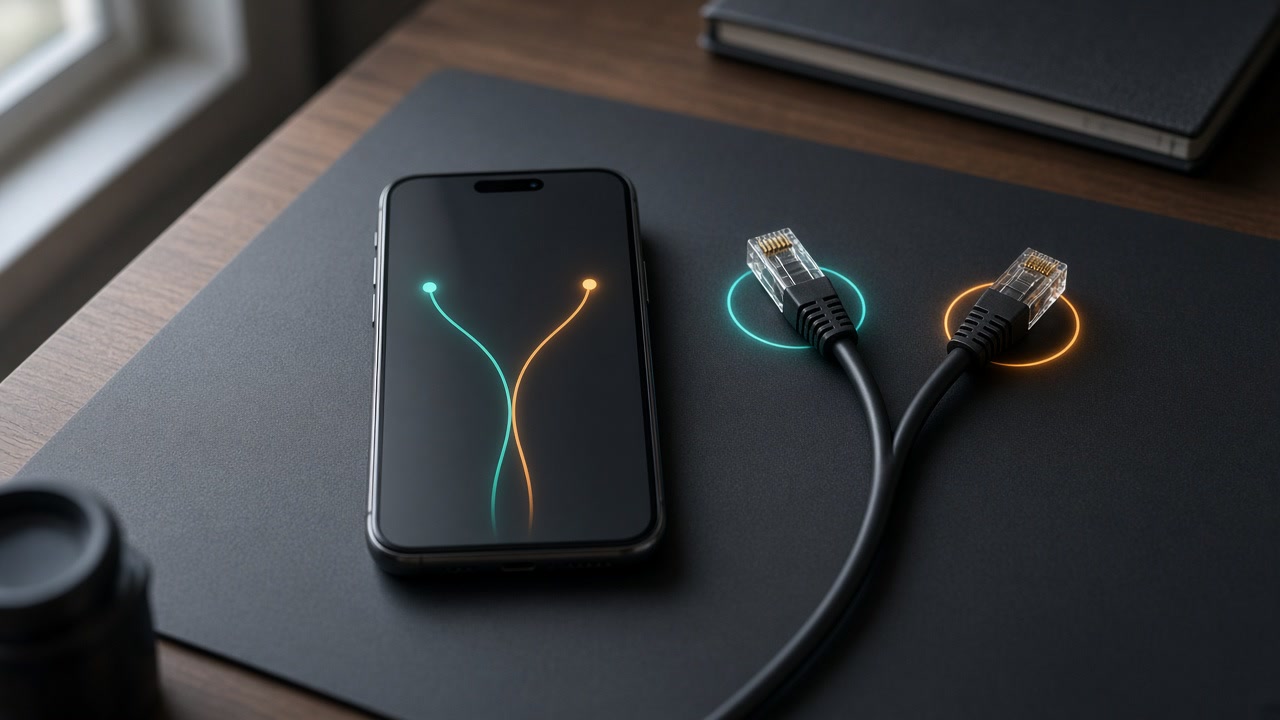
Split tunneling lets you send some traffic through your VPN and leave other traffic on your normal internet connection. With clear rules, split tunneling can keep browsing smooth while the apps and sites that need the tunnel stay protected. Vague exceptions can leave gaps you did not intend.
This guide explains what split tunneling actually does, when it helps, when you should keep everything on the VPN, and how it fits with a kill switch in BetterVPN.
What split tunneling means in practice
With a normal always-on VPN setup, most or all of your device traffic goes through the encrypted tunnel. With split tunneling, you choose exceptions.
Depending on your device and app version, BetterVPN can split traffic by:
- country
- app
- site or IP
That means you can keep sensitive work or banking traffic inside the VPN while letting a local printer utility, a streaming app that needs a local IP, or a latency-sensitive game use your regular connection.
Split tunneling is a deliberate map of which traffic uses the tunnel and which does not. It only helps if those exceptions are intentional.
When split tunneling helps
Split tunneling is most useful when you have a clear reason to keep some traffic local.
Local devices and networks
Printers, smart home hubs, NAS boxes, and office LAN tools often work better outside the VPN. If those services live on your home or office network, forcing them through a remote VPN server can break discovery or add delay.
Latency-sensitive apps
Some games, video calls, or real-time tools feel better on a direct path. If you only need the VPN for a browser or a work app, routing everything else through the tunnel can add delay you do not need.
Bandwidth and battery on mobile
Phones move between Wi-Fi and cellular all day. Sending every background sync through the VPN can use more battery and mobile data than you expect. Split tunneling by app lets you protect the apps that matter and leave low-risk background traffic alone.
Mixed-trust environments
On travel networks you may want the browser, email, and password manager on the VPN, while a hotel casting app or local kiosk tool stays outside. The goal is selective protection, not maximum coverage for every packet.
When you should keep everything on the VPN
There are times when split tunneling is the wrong default.
Public Wi-Fi and unknown networks
Airports, cafes, hotels, and coworking spaces are the classic case for an always-on VPN. If you do not trust the local network, keep traffic inside the tunnel unless you have a specific local device you truly need.
High-privacy tasks
If you are researching sensitive topics, managing accounts, or trying to keep your IP consistent for privacy reasons, leave the relevant apps on the VPN. Exceptions create more opportunities for accidental exposure.
You are not sure what an app sends
If you do not know whether an app talks to the internet in the background, do not exclude it casually. When in doubt, keep it on the VPN.
Policy and work requirements
Some workplaces expect all work traffic to stay on a VPN path. In those cases, prefer the always-on path for the apps that handle work data, even if personal apps stay outside.
Split tunneling vs a kill switch
People often confuse these two settings because both show up in VPN apps. They solve different problems.
- Split tunneling decides which traffic should use the VPN.
- A kill switch helps stop protected traffic from leaving outside the tunnel if the VPN connection drops.
They work together. Split tunneling defines the map. The kill switch helps enforce the protected part of that map during a brief disconnect.
If you want a deeper walkthrough of kill switch behavior, read what a VPN kill switch actually does. After you change either setting, it is worth running a quick check with how to test if your VPN is actually working.
A simple decision framework
Use this short checklist before you create exceptions.
- Name the traffic you want outside the VPN (app, site, or local device).
- Say why the direct path is better (local access, latency, battery, or a known requirement).
- Confirm the excluded traffic does not carry the data you care about protecting.
- Keep the kill switch on for the traffic that should stay inside the tunnel.
- Test once after you save the rules.
If you cannot clear steps 1 through 3, leave that traffic on the VPN.
Practical BetterVPN setups
Here are a few patterns that map cleanly to real use.
Pattern A: Travel default
Keep nearly everything on the VPN. Only exclude a specific local need if it fails through the tunnel. Prefer the kill switch on. Start from download BetterVPN and the platform notes in Help.
Pattern B: Home and work mix
Route browser and work apps through the VPN. Leave printer or local media tools outside. Keep banking and password managers on the VPN even at home if that matches your threat model.
Pattern C: One app only
Put a single sensitive app on the VPN and leave the rest direct. This is useful when you want minimal VPN coverage, but you must accept that everything else is unprotected.
None of these patterns is universally correct. The right setup is the one you can explain in one sentence and verify with a quick test.
Common mistakes to avoid
- Excluding a whole browser because one site feels slow, then browsing sensitive accounts in the same browser outside the VPN.
- Turning the kill switch off permanently because a local tool failed once, instead of excluding only that tool.
- Assuming split tunneling hides your IP for excluded apps. It does not. Excluded traffic uses your normal connection on purpose.
- Copying someone else's rule set without checking what each app actually does on your devices.
Summary
Split tunneling gives you control over what uses the VPN. It does not add privacy on its own. Use it when you have a clear local, latency, or battery reason to leave some traffic outside the tunnel. Keep everything on the VPN when the network is untrusted or when you cannot confidently name the exception.
If you are setting this up for the first time, start with BetterVPN split tunneling, confirm feature details in Help, and install from the official download page. Then test once so your rules match what you expect.